
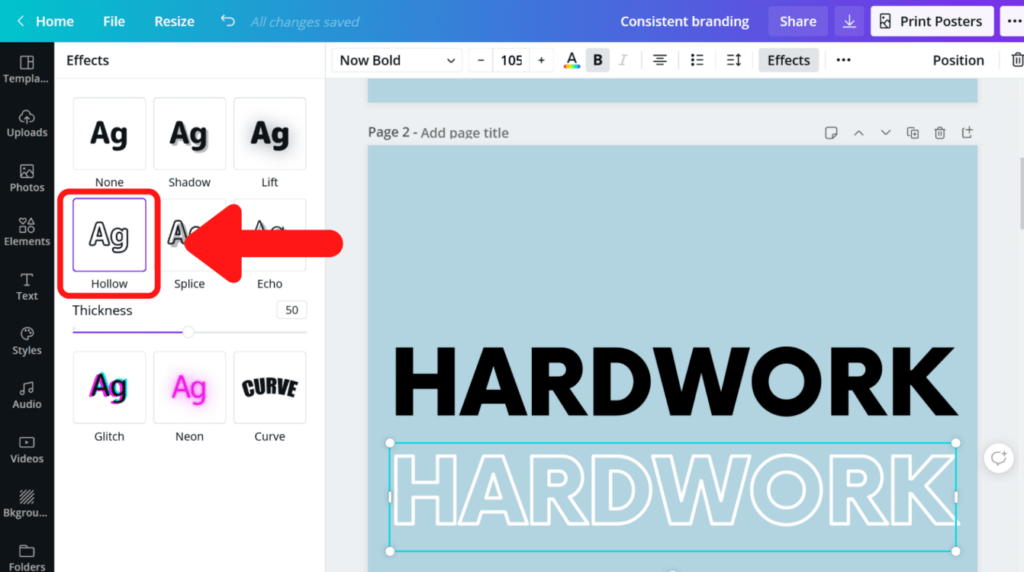
How to Outline Text in Canva
In this article, we will explore the step-by-step process of outlining text in Canva. With the outline feature, you can add a bold and eye-catching effect to your text. Whether you’re designing social media graphics or creating a stunning presentation, this tutorial will guide you through the process. Join us and elevate your design skills with Canva’s powerful tools. Stay tuned!
Mastering the Art of Outlining Text in Canva: An Essential Skill for Tech Enthusiasts
Mastering the Art of Outlining Text in Canva: An Essential Skill for Tech Enthusiasts
When it comes to creating visually appealing designs, an important aspect that often gets overlooked is the outline of the text. In the world of technology, where attention to detail matters, mastering the art of outlining text can take your designs to a whole new level.
Canva, a popular graphic design tool, offers various options to enhance the look and feel of your text. One such option is the ability to outline text. By adding an outline to your text, you can make it stand out and improve readability.
Why is outlining text important?
An outline not only adds a professional touch to your designs but also makes the text more legible, especially when used on busy or complex backgrounds. It helps separate the text from its surroundings and provides a clear boundary, making it easier for viewers to read.
How to outline text in Canva
1. Open Canva and create a new design.
2. Add a text element to your design.
3. Select the text and click on the “Text” tab in the editing toolbar.
4. In the sidebar, choose the “Effects” section.
5. Click on “Outline” and adjust the settings according to your preference. You can choose the color, size, and opacity of the outline.
6. Preview your design to see how the outlined text looks.
Tips for mastering text outlining
- Choose colors that contrast well with the background to ensure readability.
- Experiment with different outline sizes to find the right balance for your design.
- Be mindful of the font style you choose, as not all fonts work well with outlines.
- Consider the overall design and ensure that the outlined text complements the rest of the elements.
In conclusion, mastering the art of outlining text in Canva is an essential skill for tech enthusiasts looking to create visually appealing designs with clear and readable text. By following the steps and tips mentioned above, you can elevate your design game and make your text stand out in the world of technology.
Frequent Questions
How do I outline text in Canva?
To outline text in Canva, you can use the “Text Effects” feature. Simply select the text you want to outline and click on the “Text Effects” tab. Then, choose the “Outline” option and customize the color, thickness, and style of the outline.
Can I customize the color and thickness of the outline in Canva?
Yes, *Canva* allows you to customize the color and thickness of the outline.
Is it possible to apply different outline styles to individual letters or words in Canva?
Yes, it is possible to apply different outline styles to individual letters or words in Canva.
In conclusion, outlining text in Canva is a powerful technique that technology enthusiasts and designers can use to bring emphasis and creativity to their projects. Whether it’s for a website, social media graphics, or presentations, the ability to outline text can add a unique touch to your designs and make your content stand out. Canva’s user-friendly interface and extensive library of fonts and customization options make it accessible for both beginners and professionals. By following the step-by-step instructions provided in this article, you can easily master the art of outlining text and take your design skills to the next level. So why wait? Start experimenting with text outlines in Canva today and unleash your creative potential!

