
Welcome to Geek, where we dive into all things technology! In this article, we’ll help you answer the burning question: “What Lenovo laptop do I have?” Discover how to identify your Lenovo laptop model and unleash its full potential. Ready to find out? Let’s get geeky!
Identifying Your Lenovo Laptop: A Guide to Determining Your Device’s Model
Identifying Your Lenovo Laptop: A Guide to Determining Your Device’s Model
When it comes to technology, knowing the exact model of your Lenovo laptop can be crucial for various reasons. Whether you need to download specific drivers, troubleshoot issues, or simply want to upgrade your device, identifying the model is the first step towards finding the right information.
Why is the model important?
The model of your Lenovo laptop provides vital information about its specifications, compatibility, and available upgrades. It helps you determine which components are compatible with your device and which software versions are supported. Additionally, it allows you to accurately communicate with Lenovo customer support and participate in forums or communities specifically tailored to your laptop model.
How to identify your laptop model
1. Check the model number on the laptop label: Most Lenovo laptops have a label on the bottom that displays the model number. It is usually a combination of letters and numbers, such as “Yoga 720” or “ThinkPad X1 Carbon.” This label may also include other important information like the serial number and manufacturing date.
2. Look in the system settings: Another way to identify your laptop model is by accessing the system settings. On Windows, you can do this by right-clicking the Start button, selecting “System,” and looking for the “Device specifications” section. On a Mac, click the Apple menu, choose “About This Mac,” and navigate to the “Overview” tab.
3. Check the documentation: If you still have the original packaging or user manual that came with your laptop, the model number should be clearly stated there. The documentation may also include detailed specifications and additional information about your device.
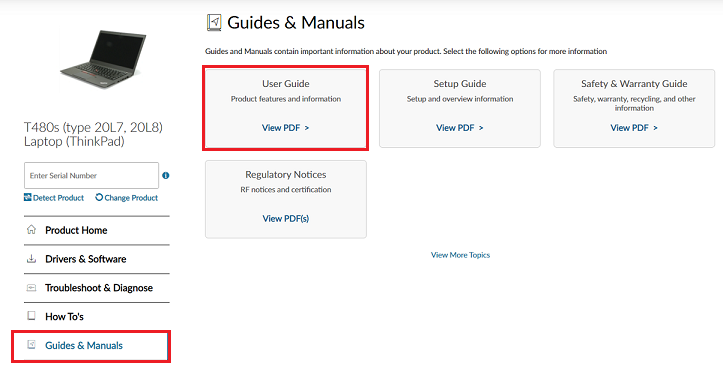
4. Use online resources: Lenovo’s official website provides various tools and resources to help you identify your laptop model. You can search for your model using their support page, enter your serial number to find the corresponding model, or browse through their product lineup to visually match your device.
Final thoughts
Knowing your Lenovo laptop’s model is essential for proper maintenance, troubleshooting, and upgrades. Take the time to identify your device using the methods mentioned above, and keep a record of your model number for future reference. With this information in hand, you’ll be better prepared to make informed decisions regarding your Lenovo laptop.
Frequent Questions
What are the specifications of my Lenovo laptop?
The specifications of your Lenovo laptop vary depending on the model and make. To provide accurate information, please provide the specific model name or number of your Lenovo laptop.
How do I find out the model number of my Lenovo laptop?
You can find out the model number of your Lenovo laptop by checking the sticker on the bottom of the device or by accessing the system information through the operating system.
Can I upgrade the RAM or storage capacity on my Lenovo laptop?
Yes, you can upgrade the RAM and storage capacity on your Lenovo laptop.
In conclusion, identifying the Lenovo laptop model you own can be a simple yet crucial task in navigating the vast world of technology. By following the steps outlined in this article, you can easily determine which Lenovo laptop you have, making it easier to troubleshoot issues, find compatible accessories, and access relevant support resources. Remember to check the label on the bottom of your device, use system information tools, consult Lenovo’s official website, or reach out to customer support for further assistance. Knowing your laptop model will empower you to make informed decisions regarding upgrades, software compatibility, and overall device maintenance. Stay tech-savvy and enjoy exploring the endless possibilities that your Lenovo laptop has to offer!

