
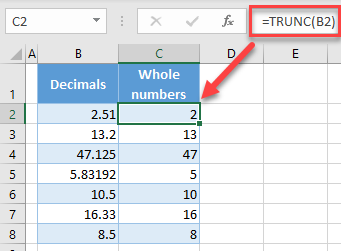
Welcome to my Geek blog! In this article, we will explore a handy Excel tip: how to remove decimals. Whether you’re working with financial data or just want to clean up your spreadsheet, this tutorial will guide you through the process step by step. Let’s dive in and make your Excel sheets even more precise!
How to Remove Decimals in Excel: A Technology Guide
To remove decimals in Excel, follow these steps:
1. Select the cells or range of cells that you want to remove decimals from.
2. Right-click on the selected cells and choose “Format Cells” from the context menu.
3. In the Format Cells dialog box, go to the “Number” tab.
4. Under the category list, select “Number”.
5. In the “Decimal places” field, enter “0” (zero) to remove all decimal places.
6. Click “OK” to apply the formatting changes.
Now, the selected cells will display the numbers without any decimals.
Frequent Questions
What are some methods to eliminate decimals in Excel when dealing with numerical data?
One method to eliminate decimals in Excel is by using the ROUND function. This function allows you to round a number to a specified number of decimal places. Another method is to use the FORMAT function and specify the desired format for the cell, such as “0” to remove all decimal places. Both of these methods are useful when dealing with numerical data in Excel.
Can I use a formula or function in Excel to round numbers and remove decimals automatically?
Yes, you can use the ROUND function in Excel to round numbers and remove decimals automatically.
Is there a specific formatting option in Excel that allows me to remove decimal places from my data?
Yes, Excel provides a specific formatting option called “Number” that allows you to remove decimal places from your data.
In conclusion, removing decimals in Excel can greatly enhance the accuracy and presentation of technology-related data. By applying the appropriate formulas and formatting techniques, users can achieve more precise results and create visually appealing spreadsheets. Understanding how to remove decimals not only improves data interpretation but also streamlines calculations and enhances data analysis. With Excel’s powerful capabilities, users can confidently work with large datasets, ensuring that their technology-related projects are both efficient and professional.

