
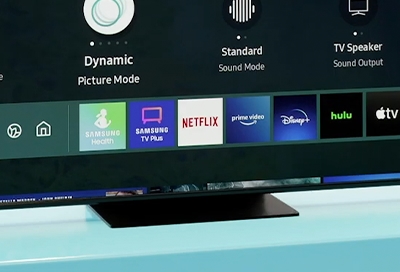
Welcome to my Geek blog! In this article, we’ll be diving into the common issue of force closing apps on Samsung TVs. Discover how to troubleshoot this problem and get your TV back to its optimal performance. So, grab your remote control and let’s get started!
How to Fix Samsung TV Force Close App Issues: Troubleshooting Guide
How to Fix Samsung TV Force Close App Issues: Troubleshooting Guide
If you’re experiencing force close issues with apps on your Samsung TV, don’t worry, there are a few troubleshooting steps you can take to resolve the problem. Follow the steps below to fix the force close app issues on your Samsung TV:
1. Restart Your Samsung TV: Sometimes a simple restart can resolve many software-related issues. To restart your Samsung TV, go to the menu, navigate to the power options, and select restart.
2. Clear App Cache: Clearing app cache can help in resolving force close issues. To clear app cache on your Samsung TV, go to the settings menu, select Apps, choose the app experiencing issues, and then select Clear Cache.
3. Update Firmware: Ensure that your Samsung TV’s firmware is up to date. Outdated firmware can cause compatibility issues and lead to force close problems. Go to the settings menu, select Support, and choose Software Update to check for any available updates.
4. Factory Reset: If all else fails, performing a factory reset may be necessary. Keep in mind that a factory reset will erase all your settings and data, so make sure to backup any important information before proceeding. To perform a factory reset, go to the settings menu, select General, choose Reset, and then select Factory Data Reset.
By following these troubleshooting steps, you should be able to fix the force close app issues on your Samsung TV. If the problem persists, it may be beneficial to contact Samsung support or seek assistance from a professional technician.
Frequent Questions
How do I fix the issue of my Samsung TV force closing apps?
To fix the issue of Samsung TV force closing apps, try performing a factory reset. This can help resolve any software-related problems causing the forced app closures.
Why does my Samsung TV keep force closing apps?
Your Samsung TV may force close apps due to insufficient system resources, software bugs, or compatibility issues.
Are there any troubleshooting steps I can try to resolve the force close app problem on my Samsung TV?
Yes, there are several troubleshooting steps you can try to resolve the force close app problem on your Samsung TV:
- Restart your TV by unplugging it from the power source for a few minutes and then plugging it back in.
- Clear the cache and data of the problematic app by going to Settings > Apps > [App Name] > Storage > Clear cache/clear data.
- Update the app and your TV’s firmware to the latest versions available.
- Reset your TV to its factory settings if the issue persists.
- Contact Samsung support for further assistance.
In conclusion, the issue of Samsung TV force closing apps is an inconvenience that has frustrated many users. However, it is important to note that this problem is not unique to Samsung TVs – other smart TVs may also encounter similar issues. While there may not be a foolproof solution to prevent force closing apps entirely, there are a few steps users can take to minimize its occurrence. Regularly updating the TV’s software, clearing cache and data, and ensuring sufficient memory space can all contribute to a smoother app experience. Furthermore, reaching out to Samsung support or seeking assistance from knowledgeable online communities can provide valuable insights and possible workarounds for persistent app crashes. As technology continues to advance, it is crucial for manufacturers to address these glitches and offer timely fixes to enhance user experience.