
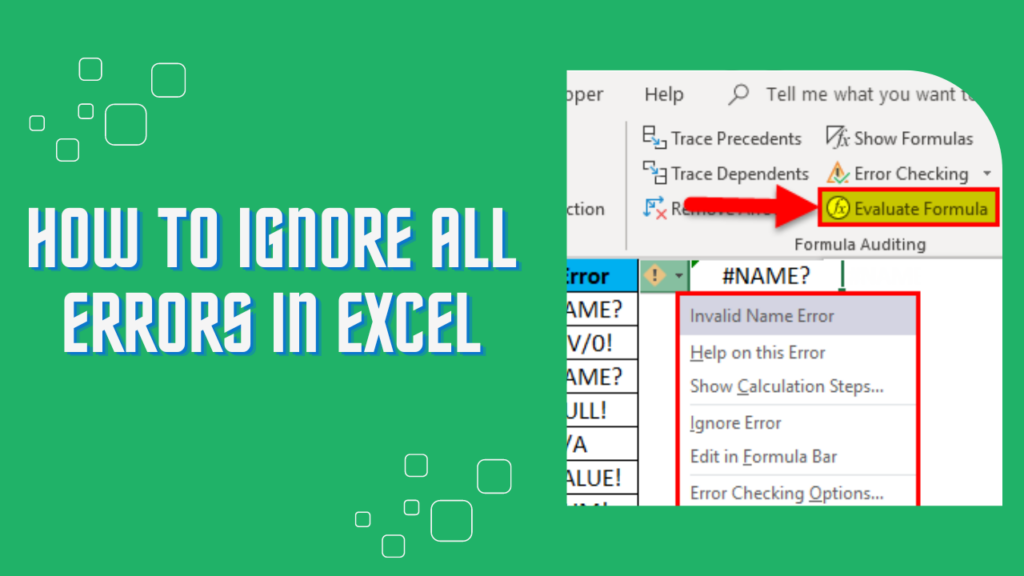
Ignore all errors in Excel to streamline your data analysis. No more frustration with red cells and error messages. Learn the simple tricks to suppress errors and improve your productivity. Discover how to hide errors without affecting calculations with this step-by-step guide. Master the art of ignoring errors and unleash the true potential of Excel.
How to Ignore All Errors in Excel: A Technology Perspective
To ignore all errors in Excel, you can follow these steps:
1. Open the Excel spreadsheet.
2. Go to the “File” menu and select “Options.”
3. In the Excel Options window, click on “Formulas” in the left sidebar.
4. Under the “Error Checking” section, uncheck the box that says “Enable background error checking” to disable automatic error checking.
5. Additionally, you can uncheck the box that says “Enable error checking rules” to disable error checking altogether.
6. Click “OK” to apply the changes.
Note: Disabling error checking in Excel may hide legitimate errors in your data, so it is important to be cautious when using this feature.
By ignoring errors, you can focus on the other aspects of your Excel sheet without being distracted by error notifications.
Don’t forget to save your workbook after making any changes.
Frequent Questions
What happens if I ignore all errors in Excel?
Ignoring all errors in Excel can lead to inaccurate data and potentially misleading analysis. Errors indicate issues with the formulas or data, and ignoring them can result in incorrect calculations and erroneous conclusions. It is important to identify and address errors in Excel to ensure the integrity and reliability of the information being analyzed.
Are there any potential consequences of ignoring errors in Excel?
Yes, there can be potential consequences of ignoring errors in Excel. Ignoring errors can lead to inaccurate data analysis or calculations, which can result in incorrect decision-making. It can also lead to a lack of data integrity and credibility, affecting the overall quality of reports and presentations. Additionally, ignoring errors may hinder troubleshooting and problem-solving efforts, as unresolved issues can compound over time.
How can I disable error checking in Excel to ignore all errors?
To disable error checking in Excel and ignore all errors, you can use the Error Checking Options feature. Here’s how:
1. Open Excel and go to the File tab.
2. Click on Options to open the Excel Options dialog box.
3. In the dialog box, select the Formulas category on the left sidebar.
4. Scroll down to the Error checking rules section.
5. Uncheck the boxes next to the error types you want to ignore, such as Numbers formatted as text or Inconsistent formulae.
6. Click OK to save the changes.
By disabling these error checking rules, Excel will no longer display error notifications or underline cells with errors. However, keep in mind that this may also hide legitimate errors, so use with caution.
In conclusion, it is crucial for individuals working with Excel to ignore all errors that may arise. While these errors can be frustrating, they are not necessarily reflective of a problem with the technology itself. Instead, they often stem from data discrepancies, formatting issues, or formula miscalculations. By remaining focused on the overall objective and understanding the underlying causes of these errors, users can confidently navigate through any obstacles and make the most out of this powerful tool. Excel’s versatility and vast array of functions make it an invaluable asset in the realm of technology, allowing users to streamline processes and analyze data effectively. So, let us embrace the potential of Excel while overlooking minor hiccups along the way, knowing that with practice, patience, and continued learning, we can maximize its benefits and achieve our goals efficiently.

