
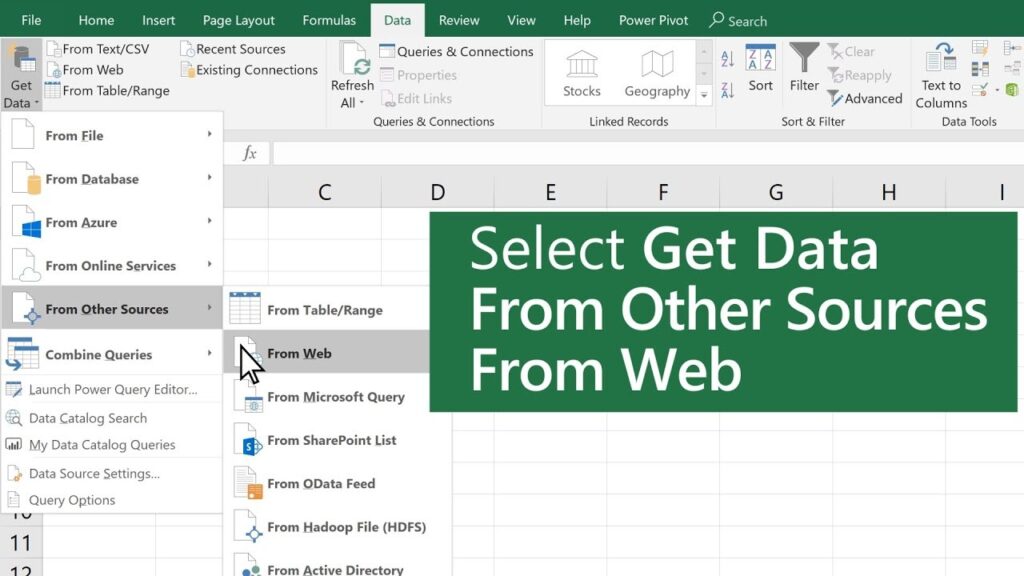
Introducing Excel’s “Get Data from Web” feature – a powerful tool that enables you to effortlessly fetch data from the internet. In this blog post, we’ll dive deep into the intricacies of this feature, exploring its functionality and how it can revolutionize your data retrieval process. Stay tuned!
How to Use Excel’s ‘Get Data from Web’ Feature to Streamline Data Gathering
Sure! Here’s the response:
How to Use Excel’s ‘Get Data from Web’ Feature to Streamline Data Gathering
When it comes to gathering data from the web, Excel’s ‘Get Data from Web’ feature can be a powerful tool. This feature allows you to extract data from websites directly into your Excel workbook, eliminating the need for manual data entry.
To use this feature, follow these steps:
1. Open Excel and navigate to the ‘Data’ tab.
2. Click on the ‘Get Data’ button and select ‘From Web’ from the drop-down menu.
3. In the ‘From Web’ dialog box, enter the URL of the website you want to extract data from.
4. Click on the ‘OK’ button to proceed.
5. Excel will then load the web page and display a preview of the data that can be extracted.
6. Select the specific data you want to import by checking the corresponding checkboxes.
7. Click on the ‘Load’ button to import the selected data into your Excel worksheet.
By using this feature, you can automate the process of gathering data from multiple web pages, saving both time and effort. Additionally, Excel allows you to refresh the imported data automatically, ensuring that your workbook stays up-to-date with the latest information from the web.
So, if you find yourself frequently collecting data from websites, give Excel’s ‘Get Data from Web’ feature a try. It can greatly streamline your data gathering process and enhance your productivity.
Note: Remember to review the terms of service and legalities of data extraction from websites before using this feature.
Frequent Questions
How can I extract data from a website using Excel?
To extract data from a website using Excel, you can use the ‘Data’ tab in Excel and select the ‘From Web’ option. Then, enter the URL of the website from which you want to extract data. Excel will load the webpage and provide options to select specific tables or elements to import as a table into Excel.
What are the steps to import data from the web into Excel?
The steps to import data from the web into Excel are as follows:
1. Open Excel and create a new worksheet.
2. Go to the Data tab on the Excel ribbon and select “From Web” in the “Get External Data” section.
3. Enter the URL of the webpage containing the data you want to import and click “Go” or “OK”.
4. Select the tables or specific data elements you want to import from the webpage.
5. Click “Import” and choose the location where you want the imported data to be placed in Excel.
6. Customize the data import options if needed, such as specifying delimiters or column headers.
7. Click “OK” to import the data into Excel. The selected data will be imported and displayed in the designated location.
Is it possible to automatically refresh the imported data from a website in Excel?
Yes, it is possible to automatically refresh the imported data from a website in Excel.
To conclude, Excel Get Data from Web is a powerful feature that allows users to effortlessly extract and refresh data from websites directly into their Excel spreadsheets. This functionality offers immense convenience and efficiency, particularly for individuals and businesses reliant on web data for analysis, reporting, and decision-making processes. With its user-friendly interface and customizable options, Excel Get Data from Web empowers users to unlock valuable insights and stay ahead in the technology-driven world. Harnessing this capability not only streamlines workflow but also enhances productivity and accuracy, making it an indispensable tool for tech-savvy individuals and organizations alike. So, give it a try and embrace the limitless possibilities it brings to your data management and analysis endeavors.

