
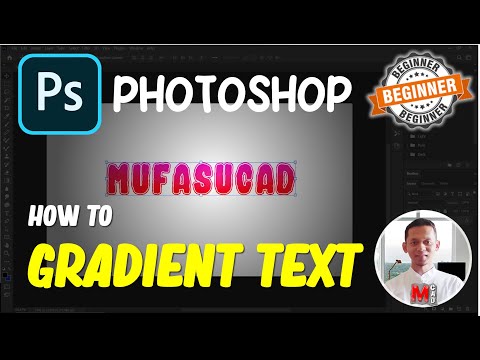
Title: “How to Add a Gradient to Text in Photoshop: A Step-by-Step Guide”
Introduction:
Are you looking to add an eye-catching gradient effect to your text in Photoshop? Look no further! In this article, we will walk you through the process of creating stunning gradient text using Photoshop’s powerful tools. Whether you’re a design enthusiast or a professional graphic artist, this step-by-step guide will provide you with the necessary skills to make your text pop with vibrant colors. Let’s dive in and unleash your creative potential!
How to Create Stunning Gradient Text Effects in Photoshop
To create stunning gradient text effects in Photoshop, follow the steps below:
1. Open Photoshop and create a new document.
2. Type the desired text using the Text Tool (T).
3. Highlight the text and go to the Character panel (Window > Character).
4. In the Character panel, select the text color by clicking on the color swatch next to the “T” icon.
5. In the Color Picker, choose a starting color for your gradient and click OK.
6. Now, click on the Gradient Overlay option in the Layers panel (Fx icon at the bottom).
7. In the Gradient Overlay window, click on the gradient thumbnail to open the Gradient Editor.
8. In the Gradient Editor, you can customize the gradient by adding or removing color stops, adjusting the position and opacity of each stop, and selecting different gradient types.
9. Experiment with different colors and settings until you achieve the desired gradient effect.
10. Once you’re satisfied with the gradient, click OK to close the Gradient Editor and apply the effect.
By following these steps, you can easily create stunning gradient text effects in Photoshop. Play around with different colors and gradients to achieve unique and eye-catching results.
Note: Make sure to save your work regularly to avoid losing any progress.
Frequent Questions
How can I achieve a gradient effect on text using Photoshop?
To achieve a gradient effect on text using Photoshop, you can follow these steps:
1. Select the text layer in Photoshop.
2. Go to the “Layer” menu and select “Layer Style.”
3. Click on “Gradient Overlay” from the options.
4. In the Gradient Overlay dialog box, you can customize the gradient by adjusting the colors, angle, and scale.
5. Experiment with different settings until you achieve the desired gradient effect.
6. Once satisfied, click “OK” to apply the gradient overlay to your text.
Note: Make sure to choose contrasting colors for an impactful gradient effect.
What are the steps to adding a gradient to text in Photoshop?
To add a gradient to text in Photoshop, follow these steps:
Step 1: Open Photoshop and create a new document or open an existing one.
Step 2: Type out the text using the Text Tool (T) and select the font, size, and color.
Step 3: With the text layer selected in the Layers panel, click on the Layer Styles icon at the bottom of the panel or go to Layer > Layer Style > Gradient Overlay.
Step 4: In the Layer Style dialog box, select “Gradient Overlay” from the left-hand menu.
Step 5: Customize the gradient by clicking on the gradient preview box. Adjust the colors, position, and angle as desired.
Step 6: Modify other settings such as opacity, blending mode, and scale to further enhance the gradient effect.
Step 7: Click “OK” to apply the gradient to the text.
Remember to experiment with different gradient options and settings to achieve the desired result!
Is there a specific tool or feature in Photoshop for creating gradient text effects?
Yes, Photoshop has a specific tool called the Gradient Overlay feature that can be used to create gradient text effects.
In conclusion, adding a gradient to text in Photoshop is a powerful technique that can elevate the visual impact of your designs. With the ability to create custom gradients and apply them to text, you can achieve stunning effects that captivate your audience. Whether you’re designing a website, creating promotional materials, or crafting social media graphics, this skill is a valuable tool in your technology arsenal. By following our step-by-step guide, you can easily harness this feature and take your design game to the next level. So go ahead and experiment with gradients, unleash your creativity, and create captivating text effects that leave a lasting impression.

