
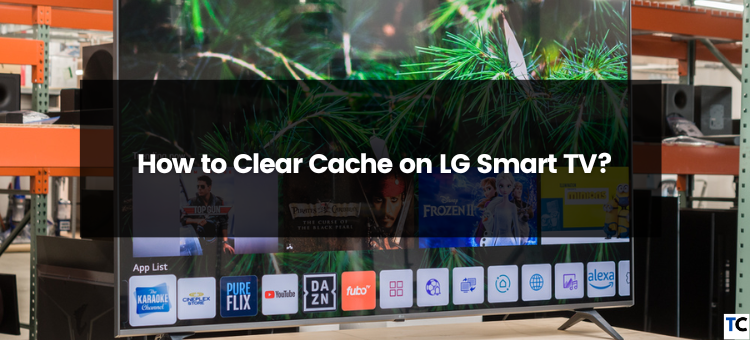
Welcome to Geek, Rick! In this article, we will guide you on how to clear cache on your LG Smart TV. Clearing the cache can help improve the performance and speed of your TV, ensuring a seamless viewing experience. Stay tuned to learn the step-by-step process. Let’s get started!
Quick and Easy Guide: Clearing Cache on LG Smart TV for Enhanced Performance
Quick and Easy Guide: Clearing Cache on LG Smart TV for Enhanced Performance
If you own an LG Smart TV and have noticed a decrease in performance or slow loading times, it may be time to clear the cache. The cache is a temporary storage area that holds frequently accessed data to speed up processes, but over time, it can become cluttered and affect the TV’s overall performance.
To clear the cache on your LG Smart TV, follow these simple steps:
1. Access the Settings Menu: Press the home button on your remote control to open the home screen. Then, navigate to the “Settings” icon using the arrow keys.
2. Open the General Settings: In the settings menu, scroll down until you find the “General” option. Highlight it and press the Enter/OK button on your remote.
3. Clear the Cache: Within the General settings, locate and select the “Storage & Reset” option. Here, you will find the “Cached Data” option. Click on it to clear the cache.
4. Confirm the Action: A pop-up message will appear on the screen asking if you want to delete the cached data. Select “OK” to proceed with the clearing process.
5. Restart Your TV: Once the cache has been cleared, it is recommended to restart your LG Smart TV. You can do this by turning off the TV, unplugging it from the power source, waiting for a few minutes, and then plugging it back in.
By following these quick and easy steps, you can clear the cache on your LG Smart TV and potentially enhance its performance. It is advisable to perform this cache clearing process periodically to ensure optimal functioning of your TV.
Remember, clearing the cache is a safe procedure and does not delete any personal data or customized settings. It simply removes temporary files that may be slowing down your LG Smart TV’s performance.
Frequent Questions
How do I clear the cache on my LG Smart TV?
To clear the cache on your LG Smart TV, go to the Settings menu and select Storage & Reset. Then, choose Clear Cache to remove temporary files and improve performance.
Why should I clear the cache on my LG Smart TV?
Clearing the cache on your LG Smart TV can help improve its performance and resolve issues such as slow loading times or freezing. It clears temporary files and data that may be outdated or corrupted, allowing the TV to run more smoothly.
What happens if I don’t clear the cache on my LG Smart TV?
If you don’t clear the cache on your LG Smart TV, it can lead to performance issues and slow down the device. The cache stores temporary data from apps and websites, and over time, it can accumulate unnecessary files and cause the TV to become sluggish. Clearing the cache regularly helps improve the TV’s speed and responsiveness.
To wrap up, clearing the cache on an LG Smart TV is an essential maintenance task for optimizing performance and resolving various issues. By following these simple steps, users can easily free up space, improve loading speeds, and eliminate glitches or freezes. It’s crucial to keep in mind that regularly clearing the cache can significantly enhance the overall TV experience. Taking a few minutes to do this routine maintenance can go a long way in ensuring smooth and seamless operation. Stay tech-savvy and enjoy your LG Smart TV to the fullest!

