
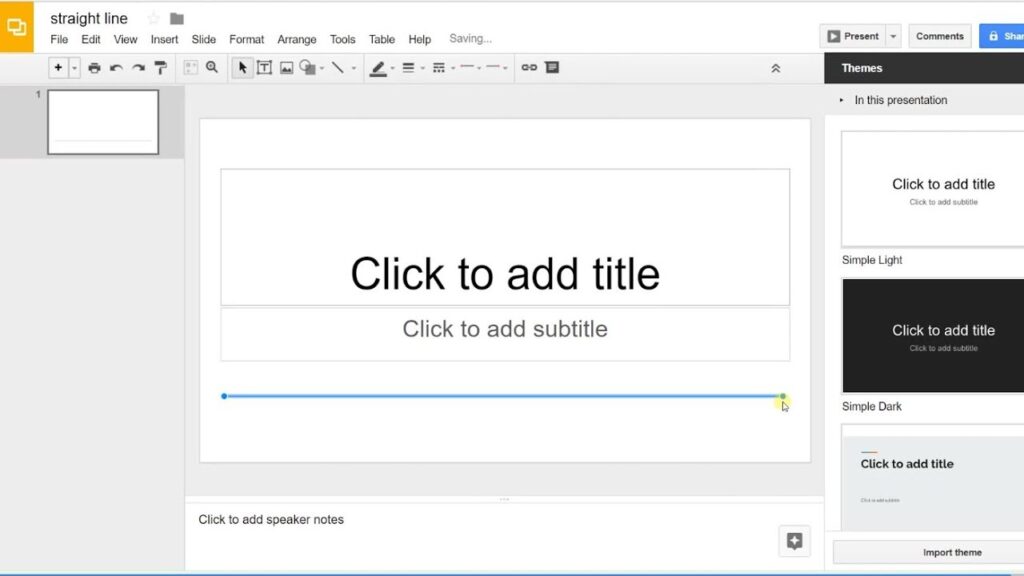
Introduction: In this article, we will explore a handy tip for Google Slides enthusiasts – how to create a perfectly straight line. Learn how to utilize the available tools in Google Slides to achieve professional and precise presentations.
Mastering the Art of Creating Straight Lines in Google Slides
Mastering the Art of Creating Straight Lines in Google Slides is a crucial skill for anyone working with technology. Google Slides is a powerful presentation software that allows users to create visually appealing slideshows. However, creating straight lines can sometimes be challenging, especially for those new to the platform.
To create straight lines in Google Slides, follow these steps:
1. Open Google Slides and navigate to the slide where you want to add a straight line.
2. Click on the “Insert” tab at the top of the interface.
3. From the dropdown menu, select “Line.”
4. Click and drag on the slide to draw the straight line. Holding the Shift key while dragging will ensure that the line stays perfectly horizontal or vertical.
5. To customize the line further, right-click on it and select “Format options.” Here, you can change the line’s color, thickness, and style.
By mastering this technique, users can enhance the visual appeal of their presentations and convey information more effectively. Whether it’s connecting points on a graph or dividing content into sections, straight lines play an essential role in creating professional-looking slides.
In conclusion, mastering the art of creating straight lines in Google Slides is a valuable skill for individuals working with technology. Understanding how to use the line tool effectively can take presentations to the next level and impress audiences with clean and well-designed slides.
Frequent Questions
How can I create a straight line in Google Slides?
To create a straight line in Google Slides, select the Line tool from the toolbar. Then, click and drag to draw a straight line on your slide.
Is it possible to draw a perfectly straight line in Google Slides?
Yes, it is possible to draw a perfectly straight line in Google Slides using the built-in tools.
Are there any shortcuts or tools available for easily making straight lines in Google Slides?
Yes, there are shortcuts and tools available for easily making straight lines in Google Slides. Users can hold the Shift key while drawing a line to ensure it is perfectly horizontal or vertical. Additionally, the Line Tool in the toolbar provides a quick way to create straight lines with various styles and thicknesses.
In conclusion, Google Slides offers a simple and effective solution for creating straight lines in presentations. By utilizing the “Line” tool and adjusting its properties, users can easily achieve precise lines with different styles and thicknesses. This feature enhances the visual appeal of slides while allowing for better organization and clarity in conveying information. Whether it’s for designing infographics, diagrams, or simply emphasizing key points, the ability to create straight lines in Google Slides is a valuable asset for any technology-savvy presenter.

