
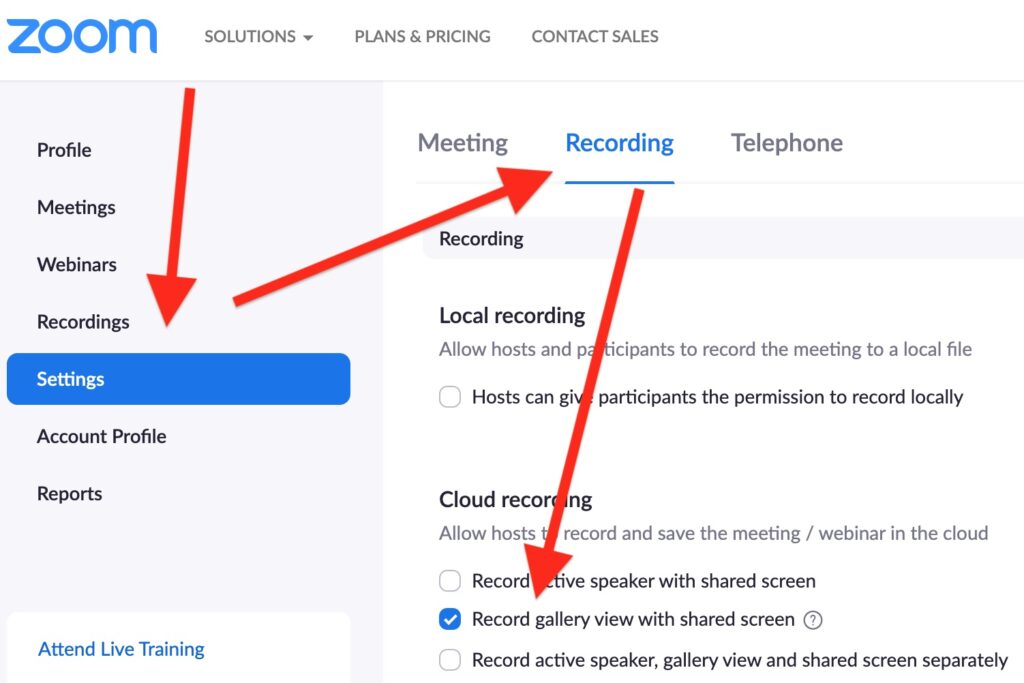
How to Record Gallery View in Zoom: Learn how to capture the gallery view of a Zoom meeting and record it for future reference. Whether you’re hosting a remote conference, a virtual classroom, or a team collaboration, this article will guide you step-by-step on how to record everyone’s video feeds simultaneously in Zoom’s gallery view. Don’t miss any details—record your Zoom meetings like a pro! Stay tuned for tips and tricks to optimize your Zoom recording experience.
How to Record Gallery View in Zoom: A Comprehensive Guide
To record the gallery view in Zoom, follow these steps:
1. Launch Zoom and start or join a meeting.
2. Once you’re in the meeting, click on the “Gallery View” button located at the top right corner of the Zoom window.
3. Next, click on the “Record” button at the bottom of the Zoom window. A pop-up menu will appear with recording options.
4. From the recording options menu, select “Record on this computer” to save the recording locally. Alternatively, you can choose “Record to the cloud” to save the recording on the Zoom cloud storage.
5. If prompted, click “OK” to confirm your recording preferences.
6. Now, all participants’ video feeds in the gallery view will be recorded. You can switch between the speaker view and gallery view during the recording by clicking the respective buttons.
7. To end the recording, click on the “Stop Recording” button at the bottom of the Zoom window. A confirmation message will appear.
8. After ending the recording, Zoom will automatically convert the recording into a playable format. The conversion time will depend on the length of the recording.
9. To access your recorded gallery view, click on the “Meetings” tab in the Zoom desktop client and go to the “Recorded” tab. Here, you’ll find a list of your recorded meetings along with the gallery view recordings.
Note: Recording a Zoom meeting may require permission from the host and other participants, depending on the settings chosen by the meeting organizer. Additionally, make sure to comply with any legal regulations regarding consent and privacy when recording meetings.
Frequent Questions
How can I record a Zoom meeting with gallery view?
To record a Zoom meeting with gallery view, you can use Zoom’s built-in recording feature. Start the meeting and click on the “Record” button at the bottom of the Zoom window. Make sure to select “Record on this computer” option. By default, Zoom will capture the active speaker view, but to record gallery view, go to the top-right corner of the Zoom window, click the “View” button, and choose “Gallery View.” This will ensure that the meeting is recorded with all participants in gallery view.
Is it possible to capture the gallery view during a Zoom call?
Yes, it is possible to capture the gallery view during a Zoom call.
What are the steps to record the gallery view in Zoom?
To record the gallery view in Zoom, follow these steps:
1. Launch Zoom and join or host a meeting.
2. Click on the “Record” button at the bottom of the Zoom window.
3. From the drop-down menu, select “Record on this Computer”.
4. Start the meeting and switch to Gallery View by clicking the “View” button at the top-right corner of the Zoom window and selecting “Gallery View”.
5. During the meeting, the recorded video will capture all participants in the gallery view.
6. To stop the recording, click on the “Stop Recording” button at the top-right corner of the Zoom window.
7. Once the recording is stopped, Zoom will save the recorded video file on your computer.
In conclusion, recording gallery view in Zoom is a valuable feature that allows users to capture and preserve a comprehensive view of participants during online meetings or webinars. By following the steps outlined in this article, users can ensure that their Zoom recordings include the gallery view and provide a more engaging experience for viewers. Whether it’s for educational purposes, team collaboration, or documentation, this feature enhances the value and effectiveness of Zoom as a communication and collaboration tool in the realm of technology. Embrace the power of visual connectivity and leverage the gallery view recording feature in Zoom to take your virtual interactions to the next level.

