
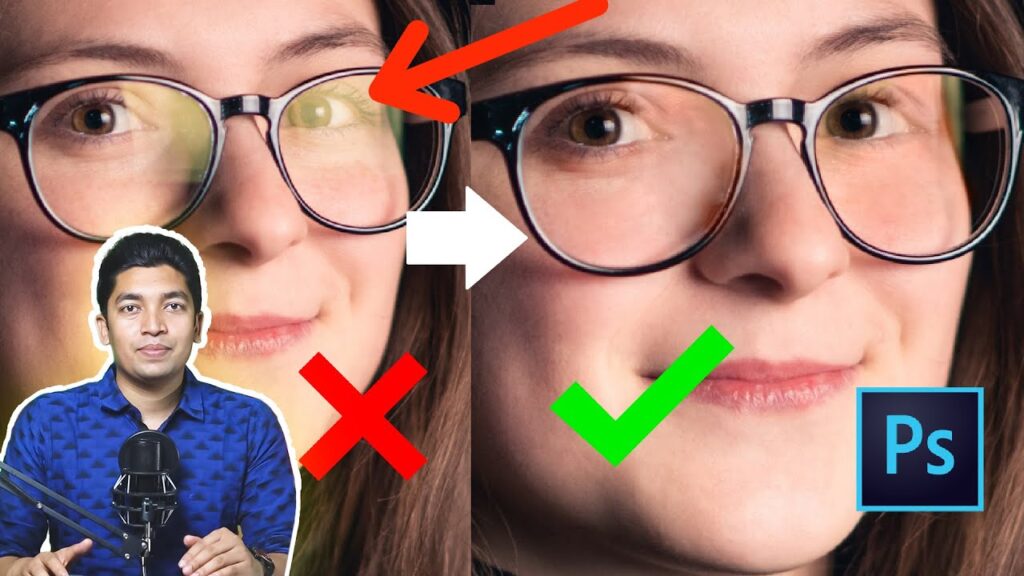
Hello Geek readers! Are you tired of annoying reflections ruining your perfectly captured photos? Fear not! In this article, we will guide you through the process of removing reflections in Photoshop effortlessly. Say goodbye to unwanted distractions and bring out the true beauty of your images. Let’s dive into the world of photo editing and make those reflections disappear! Stay tuned!
Eliminating Reflections in Photoshop: Master the Art of Technology Photography
In the realm of technology photography, one skill that is essential to master is eliminating reflections. Reflections can often detract from the overall quality and clarity of an image, making it important for photographers to possess the knowledge and tools to eliminate them.
Photoshop is a powerful tool that can be used to remove unwanted reflections from photographs. By utilizing various techniques and tools within Photoshop, photographers can effectively eliminate reflections and enhance the visual appeal of their technology-related images.
One technique commonly used is the clone stamp tool. This tool allows photographers to sample a specific area of the image and then paint over the reflection, blending it seamlessly with the surrounding pixels. By carefully selecting the appropriate source area and adjusting the brush settings, photographers can achieve a natural-looking result.
Another useful tool for eliminating reflections in technology photography is the healing brush tool. This tool works similarly to the clone stamp tool but offers more advanced blending capabilities. Photographers can use the healing brush tool to seamlessly remove reflections by sampling nearby pixels and applying them to the affected area.
Layer masks are another valuable feature in Photoshop for eliminating reflections in technology photography. By creating a layer mask, photographers can selectively paint over the reflection, effectively concealing it without altering the rest of the image. Layer masks provide flexibility and control, allowing photographers to fine-tune the removal of reflections.
In addition to these tools and techniques, understanding lighting is crucial for minimizing reflections during the photoshoot itself. By strategically positioning lights and using light modifiers such as umbrellas or diffusers, photographers can control the direction and intensity of light, reducing the likelihood of reflections appearing in the image.
In conclusion, mastering the art of eliminating reflections in technology photography is essential for producing high-quality images. By utilizing tools and techniques in Photoshop and practicing effective lighting strategies, photographers can enhance their skills and capture stunning technology-related photographs.
Frequent Questions
How can I remove reflections from a photo using Photoshop?
To remove reflections from a photo using Photoshop, follow these steps:
1. Open the desired photo in Photoshop.
2. Select the Clone Stamp Tool by pressing “S” on your keyboard or locating it in the toolbar.
3. Adjust the brush size and hardness according to the reflection you want to remove.
4. Hold the Alt key and click on an area near the reflection that has a similar texture and color.
5. Release the Alt key and carefully brush over the reflection, cloning the selected area onto it.
6. Repeat the process for different parts of the reflection until it is completely removed.
7. Use the Healing Brush Tool or the Spot Healing Brush Tool to further refine the area if necessary.
8. Save the edited photo.
Note: Reflective surfaces or complex reflections may require more advanced techniques in Photoshop.
What are the steps to eliminate unwanted reflections in an image using Photoshop?
The steps to eliminate unwanted reflections in an image using Photoshop:
1. Open the image in Photoshop.
2. Select the “Clone Stamp” tool from the toolbar.
3. Adjust the brush size and hardness according to the reflection area.
4. Zoom in on the affected area for better precision.
5. Press Alt and click on an area near the reflection that you want to use as a reference.
6. Carefully use the Clone Stamp tool to paint over the unwanted reflection, blending it with the surrounding pixels.
7. Continue cloning until you have successfully removed the reflection.
8. Use the Healing Brush or Spot Healing Brush tool to further refine any remaining imperfections.
9. Zoom out and review the image for any additional adjustments needed.
10. Save your edited image.
Is there a specific tool or feature in Photoshop that helps with removing reflections?
Yes, Photoshop has a specific tool called “Clone Stamp” that can be used to remove reflections from images.
In conclusion, Photoshop offers a range of powerful tools and techniques to remove reflections and enhance the quality of your photographs. Whether you’re a professional photographer or an enthusiast, mastering this skill can greatly elevate the visual appeal of your images. By utilizing features such as clone stamp and content-aware fill, you can effortlessly eliminate unwanted reflections and achieve a pristine, high-quality look. Remember to experiment with different settings and approaches to find the best method that suits your specific needs. With practice and persistence, you’ll soon become adept at reflection removal in Photoshop, adding a professional touch to your digital creations. So go ahead, unleash your creativity, and let Photoshop be your trusted companion on your technological journey!

