
Title: How to Strike Through Text in Excel: A Quick and Simple Guide
Introduction:
Are you looking to add a touch of professionalism or emphasize changes in your Excel spreadsheets? Adding a strikethrough effect can help draw attention to specific data. In this article, we will explore the simple steps to strike through text in Excel using the formatting options available. Let’s dive in and make your Excel documents even more visually impactful!
Mastering Excel: A Guide to Striking Through Text for Enhanced Data Visualization
Mastering Excel: A Guide to Striking Through Text for Enhanced Data Visualization
In today’s digital era, data visualization plays a crucial role in understanding complex information. Excel, as a powerful tool, offers numerous features to enhance data representation. One such feature is the ability to strike through text, which can provide additional insights and make important data stand out.
Using the strikethrough formatting option in Excel, you can visually emphasize changes or compare data sets effectively. This technique is particularly useful when analyzing financial data, tracking inventory updates, or monitoring project progress.
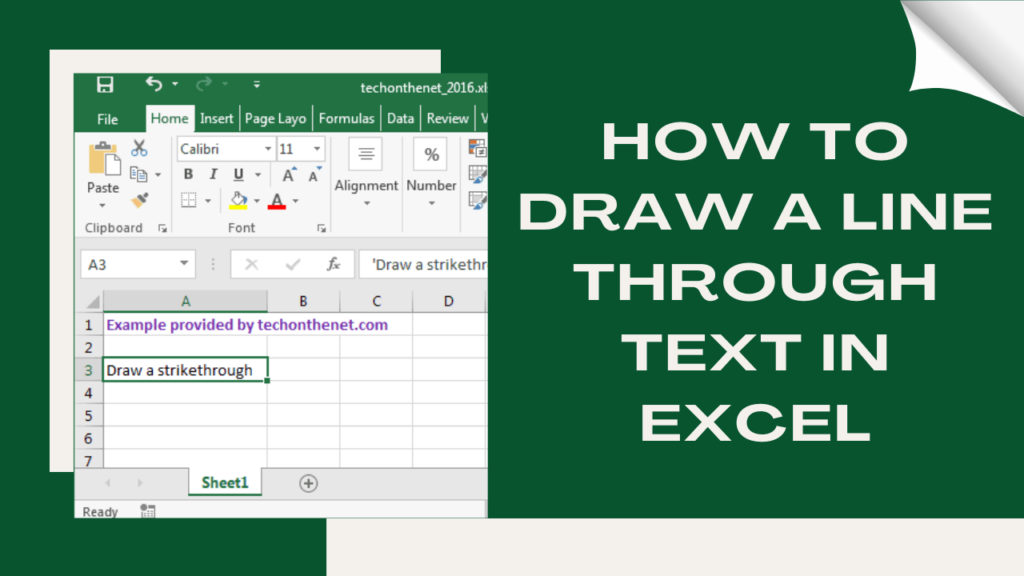
To apply the strikethrough effect, simply select the cell or cells containing the text you want to strike through. Then, right-click and choose the “Format Cells” option from the context menu. In the “Format Cells” dialog box, navigate to the “Font” tab and check the box next to “Strikethrough.” Click “OK” to apply the formatting.
By incorporating strikethrough formatting into your Excel spreadsheets, you can highlight outdated, incorrect, or irrelevant information without deleting it entirely. This ensures that viewers can immediately identify changes or discrepancies in the data, leading to more accurate analysis and decision-making.
Moreover, advanced users can take advantage of conditional formatting rules to automate the strikethrough effect based on specific conditions. For instance, if you are tracking sales targets and want to strike through values below a certain threshold, you can set up a conditional formatting rule that applies the strikethrough formatting only to those cells that meet the specified criteria.
In conclusion, mastering the art of striking through text in Excel enables you to create visually compelling and informative data visualizations. Whether you are an analyst, a project manager, or a business owner, this skill will undoubtedly enhance your ability to communicate insights effectively and make better-informed decisions. So, harness the power of Excel’s strikethrough feature and unlock new possibilities in data visualization.
Frequent Questions
How can I strike through text in Excel to indicate a change or cancellation?
To strike through text in Excel to indicate a change or cancellation, simply select the cell or range of cells containing the text, and then use the keyboard shortcut Ctrl + 5 or go to the “Font” tab in the ribbon and check the “Strikethrough” option.
Is there a shortcut key to quickly strike through text in Excel?
Yes, Ctrl + 5 is the shortcut key to quickly strike through text in Excel.
Can I apply strikethrough formatting to multiple cells at once in Excel?
Yes, you can apply strikethrough formatting to multiple cells at once in Excel.
In conclusion, the ability to strike through text in Excel is a powerful tool that can enhance your data visualization and presentation skills. By using the strikethrough formatting option, you can easily highlight outdated or irrelevant information, create comparisons, or emphasize changes. This feature is not only useful for financial analysis or project management, but also for students, researchers, and professionals dealing with large quantities of data. So, don’t hesitate to take advantage of this simple yet effective technique to make your spreadsheets more visually appealing and meaningful. Keep exploring Excel’s plethora of formatting options, and unleash your creativity in the realm of technology-driven data manipulation.

