
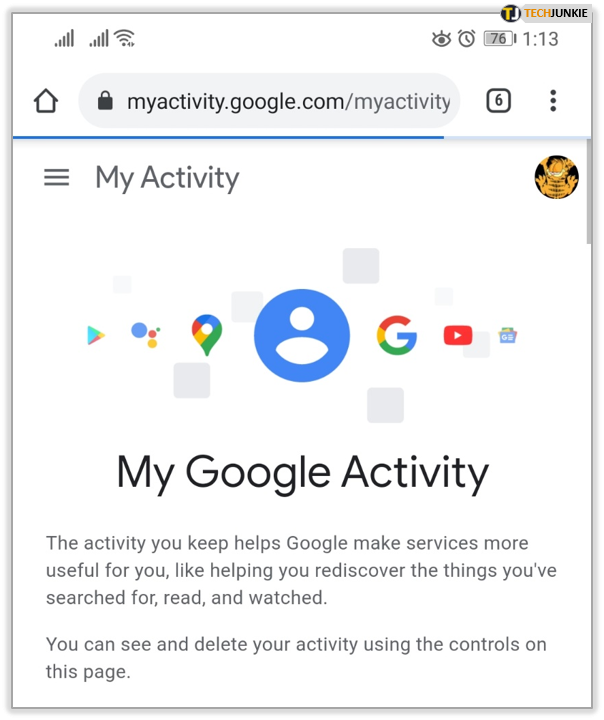
Introducing my latest article on Geek blog: “Taking Control of Your Online Footprint: Deleting History on myactivity.google.com”. Learn how to delete your browsing history and manage your online privacy effectively. Don’t let your digital tracks define you!
How to Delete Your Browsing History on myactivity.google.com
To delete your browsing history on *myactivity.google.com*, follow these steps:
1. Open your web browser and go to *myactivity.google.com*.
2. Sign in to your Google account if you haven’t already.
3. On the left-hand side, click on “Delete activity by” to open the deletion menu.
4. In the “Delete by date” section, select the time range for which you want to delete your browsing history. You can choose from options like “Last hour,” “Last day,” “All time,” or set a custom range.
5. Once you’ve selected the time range, click on “Delete” to remove your browsing history.
6. A pop-up window will appear asking you to confirm the deletion. Click on “Delete” again to confirm.
7. Your browsing history for the selected time range will now be deleted from your Google account.
Note: Deleting your browsing history from *myactivity.google.com* only removes it from your Google account. It does not delete the browsing history stored on individual devices or web browsers. You will need to clear the browsing history on each device or browser separately.
By regularly deleting your browsing history, you can maintain your privacy and keep your online activities more secure.
Frequent Questions
How can I delete my browsing history on myactivity.google.com?
To delete your browsing history on myactivity.google.com, log in to your Google account and navigate to the My Activity page. Then, click on the three-dot menu icon at the top right corner of the page and select “Delete activity by” from the dropdown menu. Finally, choose the desired time range and click on the “Delete” button. Your browsing history within the selected timeframe will be deleted.
Can I recover deleted entries from my history on myactivity.google.com?
No, you cannot recover deleted entries from your history on myactivity.google.com.
Does deleting my history on myactivity.google.com also remove it from other devices linked to my Google account?
No, deleting your history on myactivity.google.com only removes it from the specific device you are using at that moment. The history will still be accessible on other devices linked to your Google account.
In conclusion, managing and deleting our online activity history is an essential aspect of maintaining control over our digital footprint. With Google’s My Activity feature, we have the ability to review and delete our browsing history, search queries, and other interactions with Google services. By regularly clearing this data, we can ensure our privacy and protect ourselves from potential data breaches or unauthorized access. So, take advantage of myactivity.google.com and keep your online presence secure and private.

