
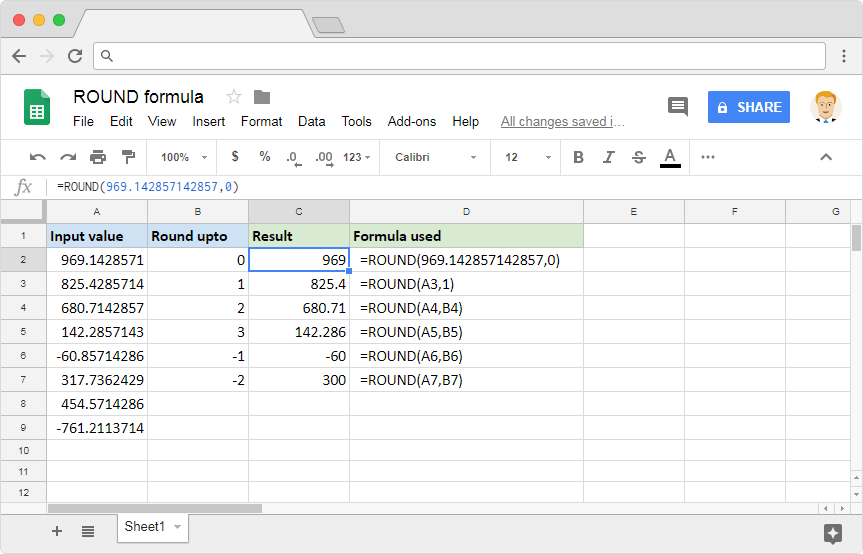
Welcome to the Geek blog! In this article, we will explore the powerful round formula in Google Sheets. Discover how this handy function can help you manipulate and refine your data to perfection. Stay tuned for expert tips and tricks on optimizing your spreadsheets!
1. How to Use the ROUND Formula in Google Sheets: A Handy Tool for Number Manipulation (Technology)
How to Use the ROUND Formula in Google Sheets: A Handy Tool for Number Manipulation
When working with numbers in Google Sheets, it’s important to have the right tools to manipulate and format them accurately. One such tool is the ROUND formula, which allows you to round numbers to a specified number of decimal places.
To use the ROUND formula, simply follow these steps:
1. Open your Google Sheets document and select the cell where you want the rounded value to appear.
2. Type the formula “=ROUND(“, followed by the cell reference or value you want to round.
3. Add a comma after the cell reference or value.
4. Specify the number of decimal places you want by entering a number or using a cell reference.
5. Close the formula with a closing parenthesis “)” and press Enter.
For example, let’s say you have a cell with the value 3.14159 and you want to round it to two decimal places. You would enter the formula “=ROUND(A1, 2)” in another cell, assuming the value is in cell A1.
The ROUND formula in Google Sheets can also be used to round numbers to the nearest whole number or to multiple of 10, 100, etc. Simply adjust the decimal places accordingly.
In conclusion, the ROUND formula in Google Sheets is a useful tool for number manipulation and formatting. It allows you to easily round numbers to the desired precision.
Frequent Questions
How can I use the ROUND formula in Google Sheets to round a number to a specific decimal place?
To use the ROUND formula in Google Sheets to round a number to a specific decimal place, you can use the syntax ROUND(number, decimal_place). Replace “number” with the cell reference or the actual number you want to round, and “decimal_place” with the desired number of decimal places.
What are the arguments that can be used in the ROUND function in Google Sheets?
The arguments that can be used in the ROUND function in Google Sheets are number and num_digits. The number argument represents the value that needs to be rounded, while the num_digits argument specifies the number of decimal places to round to.
Is it possible to use the ROUND formula in Google Sheets to round a number to the nearest whole number?
Yes, it is possible to use the ROUND formula in Google Sheets to round a number to the nearest whole number.
Conclusion:
In conclusion, utilizing the ROUND formula in Google Sheets is a valuable tool for precision and accuracy in data analysis and calculations. With its various functionalities and easy implementation, this feature empowers users to manipulate numbers effectively. Whether it’s rounding to a specific decimal place or rounding to the nearest whole number, Google Sheets provides a user-friendly platform to streamline mathematical operations. By incorporating the ROUND formula into your workflow, you can enhance the efficiency of your technological endeavors and ensure reliable results.

