
Introducing the power of “strikethrough” in Excel! Discover how to effortlessly cross out text and make edits in your spreadsheets with this handy feature. Enhance your data presentation and communication skills with strikethrough in Excel. Stay tuned for our step-by-step guide on how to use it effectively. Get ready to take your Excel game to the next level! #ExcelTips #DataEditing
Excel Strikethrough: Enhancing Text Formatting in Spreadsheets
The Excel Strikethrough feature is a valuable tool for enhancing text formatting in spreadsheets. With the Strikethrough option, users can apply a horizontal line through text to represent its removal or cancellation. This formatting can be particularly useful in technology-related contexts, where changes or updates may occur frequently.
By leveraging the Strikethrough feature in Excel, technology professionals can emphasize deprecated functions or outdated information, indicating that they are no longer relevant or recommended. This not only helps maintain accuracy within spreadsheets but also facilitates effective communication among team members or stakeholders who rely on these documents.
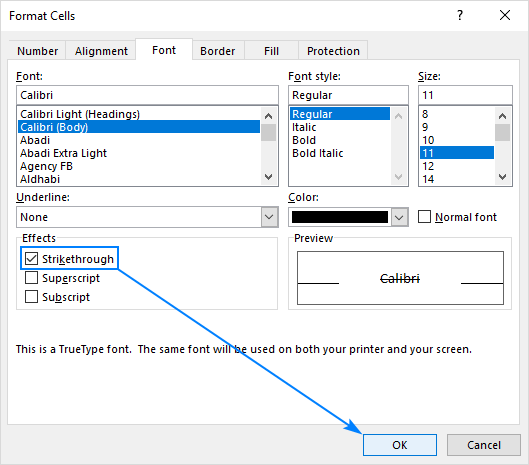
To apply the Strikethrough formatting in Excel, users can either use the application’s built-in menu options or utilize keyboard shortcuts. By selecting the desired cell or range of cells and accessing the “Font” tab in the “Format Cells” dialog box, one can easily enable the Strikethrough option.
Moreover, the Strikethrough feature in Excel can also be advantageous when tracking changes or revisions in technology projects. When collaborating with multiple individuals or across teams, using strikethrough formatting can help highlight modifications made to formulas, code snippets, or project requirements. This enhances traceability and ensures that all stakeholders are aware of the updates made during the development process.
In conclusion, the Excel Strikethrough feature offers technology professionals a convenient way to enhance text formatting in spreadsheets. Its ability to visually represent removed or outdated information can significantly improve communication, accuracy, and revision tracking within technology-related contexts.
Frequent Questions
How do I apply strikethrough formatting to text or numbers in Excel?
To apply strikethrough formatting in Excel, select the text or numbers you want to format, then right-click and choose “Format Cells”. In the Format Cells dialog box, go to the “Font” tab and tick the “Strikethrough” option. Click “OK” to apply the formatting.
Can strikethrough formatting be applied to multiple cells or rows at once in Excel?
Yes, strikethrough formatting can be applied to multiple cells or rows at once in Excel.
Is it possible to remove the strikethrough formatting from selected cells or the entire worksheet in Excel?
Yes, it is possible to remove the strikethrough formatting from selected cells or the entire worksheet in Excel.
In conclusion, the strikethrough feature in Excel proves to be an invaluable tool for technology enthusiasts. It offers a convenient way to visually indicate deleted or outdated information, making data analysis and collaboration more efficient. By utilizing this functionality, users can easily identify changes and track progress in their spreadsheets. Whether it’s highlighting errors during auditing processes or emphasizing completed tasks, strikethrough in Excel demonstrates its significance in enhancing overall data management. Stay at the forefront of technology by harnessing the power of this simple yet impactful feature in your spreadsheet journey.

