
Sure, here is a brief introduction for your Geek blog article:
Learn how to print double-sided on Canva: Discover the easy steps to create stunning double-sided prints using the popular design tool Canva. Whether you’re designing flyers, brochures, or business cards, this tutorial will guide you through the process of making your designs truly professional. Don’t miss out on this valuable printing technique!
Mastering Double-Sided Printing on Canva: Unlock Your Printing Potential
Sure! Here’s how you can use double-sided printing on Canva to enhance your printing capabilities. Canva is a versatile online design platform that allows you to create various types of content, including flyers, brochures, and presentations, using its user-friendly drag-and-drop interface.
To master double-sided printing on Canva, follow these steps:
1. Open Canva and select a template or start designing from scratch.
2. Design the front side of your document, adding text, images, and other elements to make it visually appealing and informative.
3. When you’re ready to create the back side of your document, click on the “Add a new page” option on the left sidebar.
4. A blank page will appear, allowing you to design the back side independently. Utilize the same tools and features as before to create a cohesive and complementary design.
5. Make sure to align the content on both sides properly. You can use the “Align” tool to ensure symmetry and consistency.
6. Once you’re satisfied with both sides of your document, click on the “Download” button in the top-right corner of the Canva interface.
7. In the download options, select the PDF format as it retains the best quality for printing purposes.
8. Save the PDF file to your computer.
Now that you have your double-sided design saved as a PDF, you can proceed with printing. Here’s what you need to do next:
1. Open the PDF file using a PDF viewer software on your computer.
2. Go to the print settings and locate the double-sided or duplex printing option. Depending on your printer, this option might be in a different location, so refer to your printer’s manual if needed.
3. Enable the double-sided printing option and adjust any additional settings according to your preferences.
4. Load the appropriate paper into your printer tray, ensuring that it is suitable for double-sided printing.
5. Start the printing process, and your printer will automatically print on both sides of the paper.
By following these steps, you can unlock your printing potential and create professional-looking double-sided documents using Canva. Happy printing!
Remember, technology is constantly evolving, so always consult the latest instructions and guidelines provided by Canva and your printer manufacturer to ensure the best results.
Frequent Questions
How can I print my Canva design double-sided?
To print your Canva design double-sided, follow these steps:
1. Export your design as a PDF file.
2. Open the PDF file using a PDF viewer or editor program.
3. Look for the option to print and click on it.
4. In the printing settings, choose the option for double-sided or duplex printing.
5. Adjust any other desired print settings, such as paper size or orientation.
6. Click the print button to start the printing process.
7. Make sure you have enough paper loaded in the printer to accommodate both sides of the design.
8. Wait for the printing process to complete, and you’ll have your Canva design printed double-sided.
Is it possible to print both sides of my Canva project without flipping the paper manually?
No, it is not possible to print both sides of a Canva project without manually flipping the paper.
Are there any specific settings or options in Canva that allow for double-sided printing?
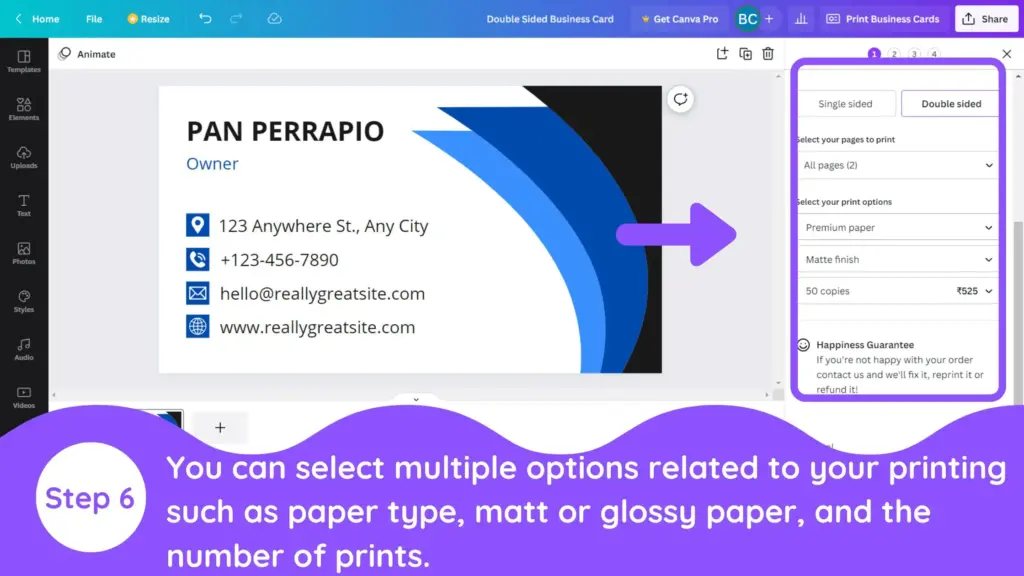
Yes, Canva does have specific settings and options for double-sided printing. Canva’s print options allow users to select double-sided printing when creating their designs. This feature is available for various types of projects, such as brochures, pamphlets, and presentations. Users can easily enable double-sided printing by adjusting the settings in the print menu.
In conclusion, Canva provides an efficient solution for printing double-sided documents, making it easier for users to create professional-looking materials. By following the simple steps outlined in this article, users can confidently navigate through the platform’s features and effortlessly print their designs on both sides of the paper. This feature not only saves time and resources but also adds a polished touch to presentations, brochures, and any other printed materials. Whether you are a student, professional, or simply someone seeking user-friendly design software, Canva proves to be a valuable tool in the world of technology. Enhance your printing experience with Canva’s double-sided printing feature and elevate your creations to the next level.

